CMS for Harmony 小工具位於編輯器的 Installed Apps。你可以在同一頁面(或跨頁面)放置同一個小工具多次 — 每個實例有各自的設定。
開始前: 先在網站安裝 CMS for Harmony。若尚未建立集合,請參閱 開始使用。
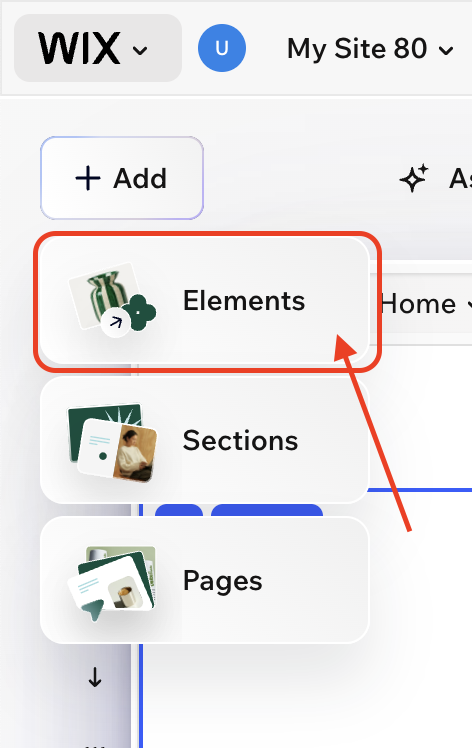
1. 開啟 Elements
- 在 Wix 編輯器開啟網站(Harmony、Studio 或 Classic)。
- 點擊 + Add。
- 選擇 Elements。
2. 開啟 Installed Apps
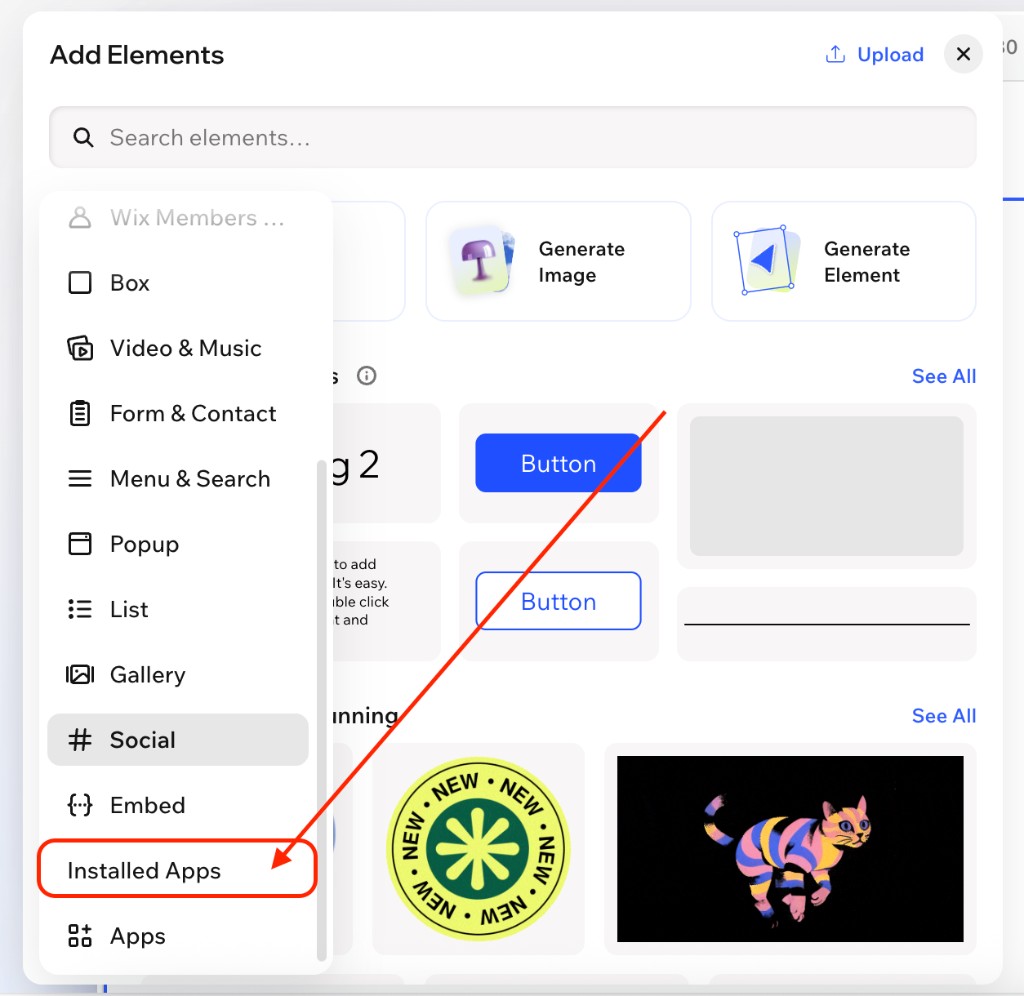
在 Add Elements 面板左側邊欄開啟 Installed Apps(必要時往下捲 — 通常在列表偏下方)。
3. 拖曳 CMS for Harmony 小工具
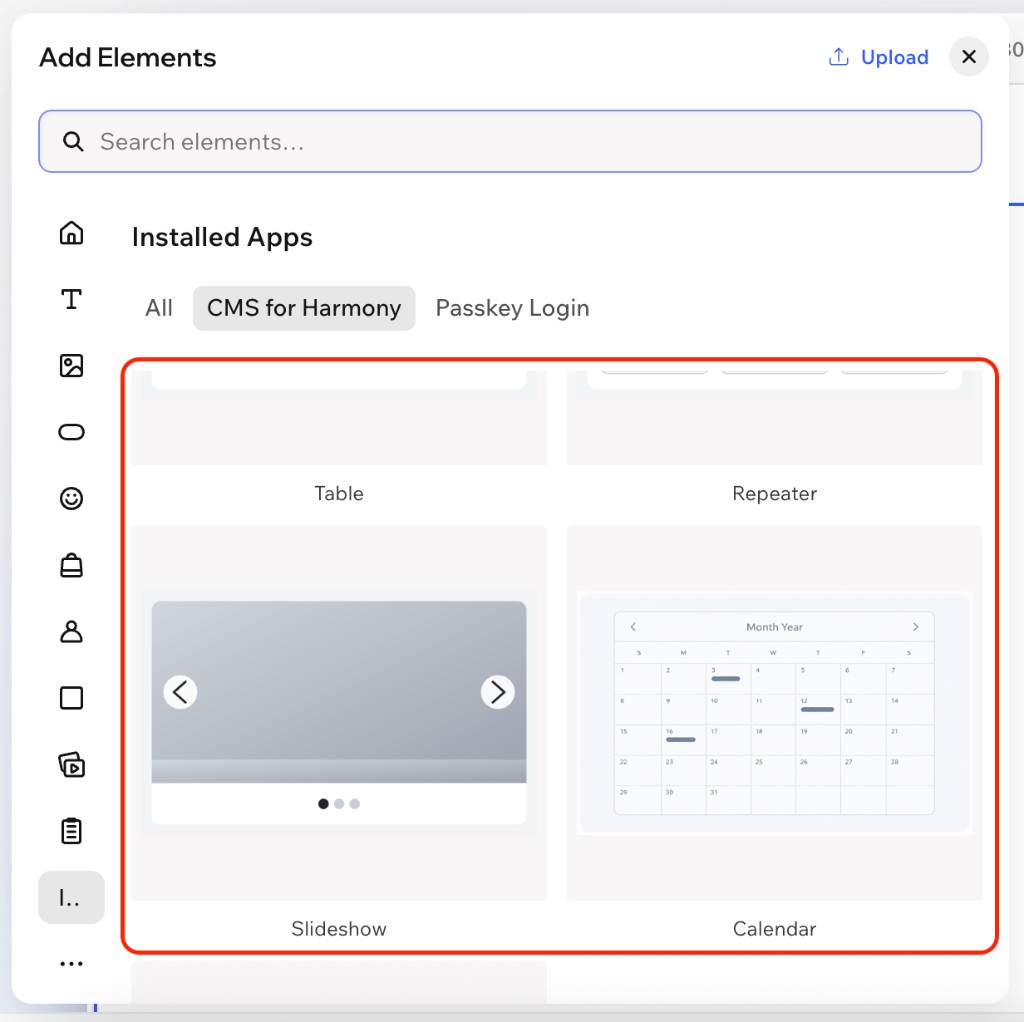
- 在 Installed Apps 選擇 CMS for Harmony 分頁(或篩選)。
- 將任一小工具拖到頁面 — 例如 Table、Repeater、Slideshow、Media Gallery、Calendar 或 Form。
- 選取小工具並開啟 Settings,以連接集合並設定。
影片教學 — Repeater 小工具
多次新增同一個小工具
需要另一個實例時,可再次拖曳同一個小工具。每個複本彼此獨立 — 可用不同集合、欄位、篩選或版面。
Dynamic Page
Dynamic Page 以相同方式新增,並放在 Wix 原生集合頁面(More actions → Add collection page)。詳情:Dynamic Page 與 如何設定 Dynamic Pages。
下一步
- 開始使用 — 安裝與第一次連接
- 新增集合 — 為欄位與權限建模
- 小工具指南:Table · Repeater · Slideshow · Media Gallery · Calendar · Chart · Form · Dynamic Page
- 選用:AI setup,用簡短描述設定小工具
FAQ
How do I add a CMS for Harmony widget?
Add → Elements → Installed Apps → CMS for Harmony, then drag a widget onto the page.
Can I add the same widget more than once?
Yes. Use multiple instances for different collections or layouts on the same site.
Which widgets support search and filters?
Table, Repeater, Calendar, Chart, Media Gallery, and Slideshow.