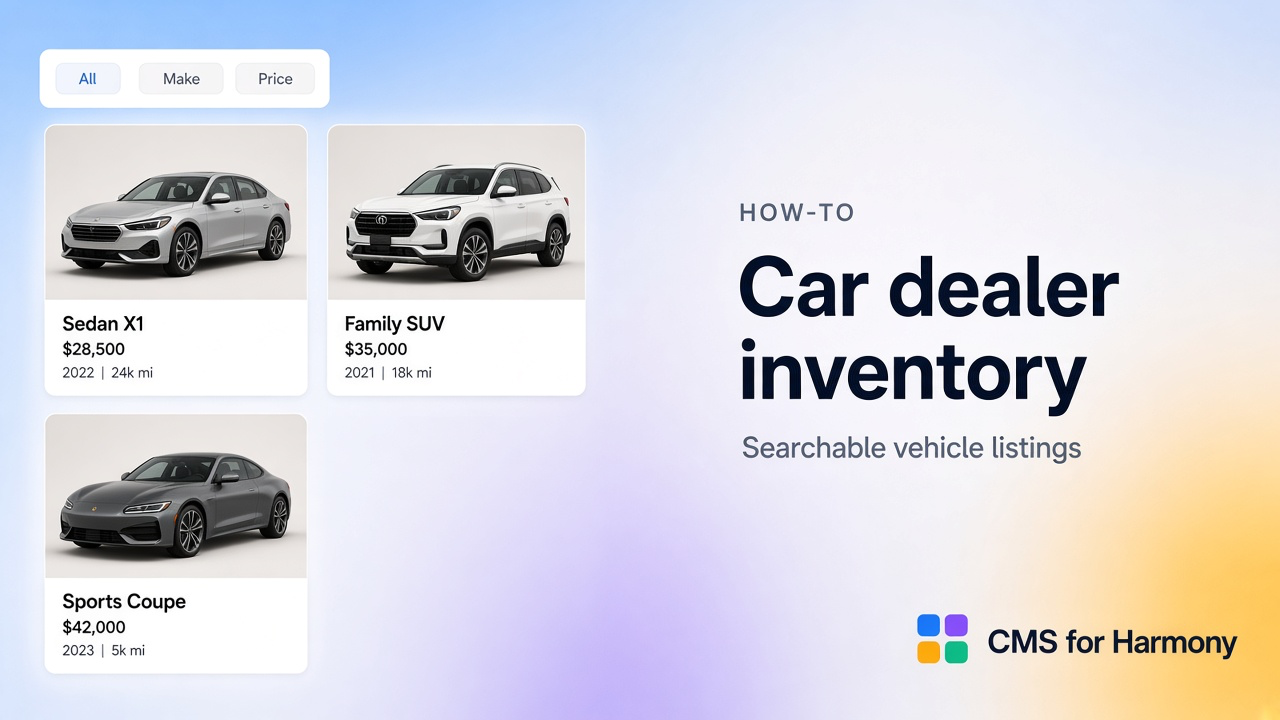
A car dealer site is an inventory browser: structured vehicle specs, photos, filters for make and price, featured units on the homepage, detail pages, and inquiry CTAs—usually without a full ecommerce checkout.
Related patterns: product catalog and real estate listings. This walkthrough is the automotive version—searchable stock, formatted price/mileage, galleries, and inquiry forms.
On Harmony without a site yet: free starter site.
What you’ll put on the site
| Piece | Typical choice |
|---|---|
| Stock | Vehicles CMS collection |
| Inventory grid | Repeater (or Table for dense stock lists) |
| Browse | Search & filters (make, model, price, availability) |
| Homepage teaser | Second Repeater on Home with a fixed “Featured” filter |
| Detail URL | Native collection page + Dynamic Page |
| Photos | Image + Media Gallery field on the item page |
| Inquire | Form (or mailto / phone on the card) |
Sample Vehicles collection schema
| Field | Type | Notes |
|---|---|---|
| Vehicle name | Text | Display title (e.g. 2022 Honda Civic EX) |
| Make | Text | Filter + dependent model filter |
| Model | Text | Filter |
| Year | Number | |
| Price | Number | Store the amount only—format currency on the widget |
| Mileage | Number | Store km or miles as a number—add unit in Formatting |
| Main photo | Image | Card + detail hero |
| Gallery | Media Gallery | Extra photos on the detail page |
| Body type | Text | SUV, Sedan, … |
| Transmission | Text | |
| Fuel | Text | |
| Availability | Text | Available / Sold / Incoming |
| Featured | Boolean or Text | Homepage spotlight |
| Short description | Text | Card teaser |
| Description | Text (long) | Detail page |
| VIN or stock # | Text | Optional |
Add a representative mix: several makes, Available and Sold, a few Featured.
Step 1 — Model Vehicles
- Create the Vehicles collection with the schema above.
- Enter real-looking stock so filters and formatting are obvious (price as
25000, mileage as42000—not$25,000or42,000 kmin the cell). - Choose More actions → Add collection page for per-vehicle URLs.
Step 2 — Inventory grid
- Add Repeater on an Inventory (or Cars) page.
- Connect Vehicles; map Main photo, Vehicle name, Price, Year, Make, Model, Mileage.
- Use a card grid; tune image Cover vs Contain so side profiles stay consistent—see Customize Repeater cards.
- Optionally add Table on a staff-only or “full stock” page for dense columns.
Step 3 — Currency and mileage without duplicated units
Keep units out of the CMS number cells so sorting and price filters stay numeric.
- Open Formatting on the Repeater (and later on Dynamic Page).
- For Price, choose an appropriate number/currency Format, and use Advanced format if you need a symbol after the value (for example a trailing €) or other rich text around
{{value}}. - For Mileage, format the number and add a
kmormisuffix via Advanced format—do not also typekminto every CMS row. - Set When empty so missing mileage collapses on the card.
Docs: Field formatting.
Step 4 — Filters for make, model, price, availability
- Open Search & filters.
- Add visitor filters (Show filter): Make, Model, Price range, Availability, optional Body type.
- Turn on Dependent filter so Model options narrow after Make (and after search, if you use it).
- Add a fixed Choose value filter if the public inventory should hide Sold by default (Availability = Available).
- Set Filters display to Top or Side; publish and try make → model → price paths.
Docs: Search & filters · Dependent filters.
Step 5 — Featured vehicles on the homepage
- Add another Repeater on Home; connect the same Vehicles collection.
- Map a smaller field set (photo, name, price).
- Add a Choose value filter: Featured = true (or Featured = Yes)—no visitor UI.
- Link cards to the same Dynamic Page path as the inventory grid.
One collection powers homepage + inventory; editors only toggle Featured in the CMS.
Step 6 — Vehicle detail pages and photo galleries
- On the native collection page, add Dynamic Page; connect Vehicles.
- Map Description, specs, Main photo, and Gallery.
- Set Page path / Item slug; enable Link to item page on both Repeaters.
- For gallery video (if any), set playback under Formatting / widget video options.
Walkthrough: Dynamic Pages.
Step 7 — Inquiry buttons
- Add a Form on the detail page (or a shared Inquire page) connected to an Inquiries collection (Name, Email, Phone, Message, optional Vehicle interest).
- Or link a button to
tel:/ a contact page from the card. - Optionally use Hidden fields (Pro) to stamp the current page URL or stock number into the submission.
Form basics: Save form submissions to CMS.
Optional: if a vehicle should check out from the CMS row, use catalog payments (Enable payments + Add to cart / Buy now on the Repeater or Dynamic Page).
Optional AI setup shortcut
Use AI setup to draft the Vehicles schema and Repeater field map from a prompt listing the columns you need. Re-check number Formatting (no duplicated € / km in the data) and Featured / Availability Choose value filters before publishing.
Live-site verification checklist
- Inventory shows Available stock only (if you fixed that filter); Sold stays hidden.
- Price and mileage render with the correct symbol/unit once—not
€25000€or42000 km km. - Make → Model dependent filters work; price range narrows results.
- Homepage Featured Repeater shows only featured units; links open the correct vehicle URL.
- Detail page shows gallery + specs; inquiry Form creates a CMS row.
- Edit price in the CMS; live cards update after refresh / data refresh.
Related reading
FAQ
How do I show price and mileage without duplicating € or km in the CMS?
Keep Price and Mileage as numbers only. On the Repeater and Dynamic Page, use Field formatting—including Advanced format for a currency symbol or km / mi around the value—so units appear once on the live widget.
Can visitors filter by make and model together?
Yes—add Show filter on Make and Model, and turn on Dependent filter so Model options narrow after Make (and after search when you use it). See Dependent filters.
How do I show sold cars in an archive but not in the main grid?
Use two Repeaters (or one with different fixed filters): main inventory Choose value Availability = Available; archive page = Sold.