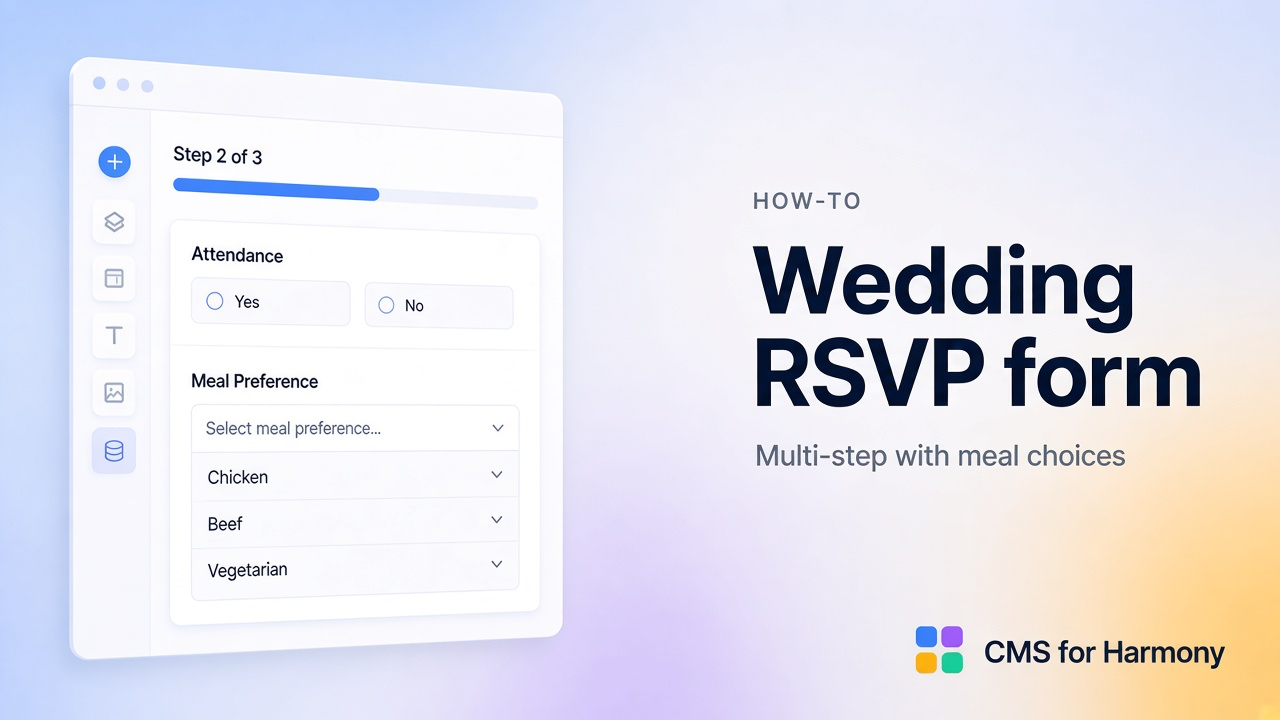
A wedding RSVP is a clear, approachable Form project: collect who’s coming, then ask meal questions only when someone attends. The CMS for Harmony Form widget supports multi-step layouts, Show only when conditionals, success messages, and optional Automations—while every response lands in a CMS collection you can review.
Basics of saving submissions: How to save form submissions to a CMS. This guide is a complete multi-step RSVP build.
On Harmony without a site yet: free starter site.
What you’ll put on the page
| Piece | Choice |
|---|---|
| Responses | RSVPs (or Wedding RSVP) collection |
| Form | Form widget with Multi-step form |
| Conditionals | Show only when on meal fields |
| After submit | Success message and/or thank-you page |
| Optional notify | Wix Automations Form submitted trigger |
Sample RSVPs collection schema
| Field | Type | Notes |
|---|---|---|
| Guest name | Text | Or Reference to a Guests list if you pre-seed names |
| Text | Useful for Automations | |
| Attendance | Text or Boolean | Yes / No (or attending checkbox) |
| Main course | Text | Dropdown options |
| Dessert | Text | Dropdown options |
| Dietary requirements | Text (long) | Free text |
| Plus-one name | Text | Optional; show only when attending |
| Submitted at | System / date | Review in CMS |
If Guest name should be a closed list, create a Guests collection and use a Reference field on RSVPs with a Display field for the dropdown labels—see Form reference fields.
Step 1 — Create the collection
- Create RSVPs with the fields above.
- For Main course and Dessert, plan the exact option strings you’ll type into the Form (they should match what you want stored).
- Optionally pre-create Guests if you use a Reference dropdown.
Step 2 — Add the Form and connect fields
- Add Form to your RSVP page.
- Connect RSVPs and select the fields guests should fill.
- In Field setup, set labels and Input type:
- Attendance → Radio buttons or Dropdown (Yes / No)
- Main course / Dessert → Dropdown with your menu options
- Dietary requirements → Text area
- Mark required fields (Guest name, Attendance; meal fields required only while shown—see next step).
Docs: Form · Field setup.
Step 3 — Split into steps
Suggested steps:
| Step | Title | Fields |
|---|---|---|
| 1 | Your details | Guest name, Email |
| 2 | Attendance | Attendance (and plus-one if you use it) |
| 3 | Meal choices | Main course, Dessert, Dietary requirements |
- Turn on Multi-step form.
- Add steps and set each Step title.
- In Field setup, assign every field to a Step.
- On the live form, guests use Next / Back; submit runs on the last step with Step N of M progress.
Reference: Form steps.
Step 4 — Conditional meal questions
Meal fields should appear only when the guest is attending.
- On Main course, Dessert, and Dietary requirements, open Show only when.
- Condition on Attendance: Equals any of → Yes (or your attending value).
- Optionally hide the whole meal step’s fields the same way so non-attendees can finish after step 2 without empty required meal questions.
- Required applies only while the field is shown.
In the editor, fields that would be hidden show a hatch overlay so you can still find them.
Step 5 — Confirmation and optional automation
- Under Submit, set Button label, Submitting label, and Success message (e.g. “Thanks—we’ve received your RSVP.”).
- Set After Submit:
- Stay on Page for an on-form confirmation, or
- Navigate to Page to a thank-you URL.
- Optionally open Wix Automations and connect the CMS for Harmony Form submitted trigger to email the couple or wedding planner.
- On Pro, consider Spam & bot protection if the RSVP URL is public.
Docs: After Submit.
Step 6 — Review responses in the CMS
- Publish and submit test RSVPs: one Yes with meals, one No.
- Open the RSVPs collection—confirm rows, meal fields empty when Attendance is No.
- Export or filter in the CMS as you manage headcount.
Optional AI setup shortcut
AI setup on the Form can propose steps and fields from a prompt like “multi-step wedding RSVP with attendance and food selections.” After apply, verify Show only when on every meal field and run a Yes and a No submission on the live site—do not skip the checklist.
Live-site verification checklist
- Step progress shows Step N of M; Back keeps prior answers.
- Choosing Attendance = No hides meal fields (and does not block submit with required meal errors).
- Choosing Yes shows Main course, Dessert, Dietary; required meal fields enforce before submit.
- Success message or thank-you navigation works.
- Both test rows appear correctly in the CMS.
- If Automations are connected, the test trigger fires once per submit.
Related reading
- Save form submissions · Form
- Form submissions → dynamic pages (when each response needs a public URL)
FAQ
Can meal questions live on the same step as attendance?
Yes. Show only when works within a step or across steps. Splitting into a Meal step is clearer for longer menus.
Can meal fields stay required only when the guest is attending?
Yes—Required applies only while the field is shown. Pair it with Show only when on Attendance Equals Yes so non-attendees are not blocked by empty meal fields.
Can I email the couple when someone RSVPs?
Yes—in Wix Automations, connect the CMS for Harmony Form submitted trigger to send a notification (or any follow-up you configure).