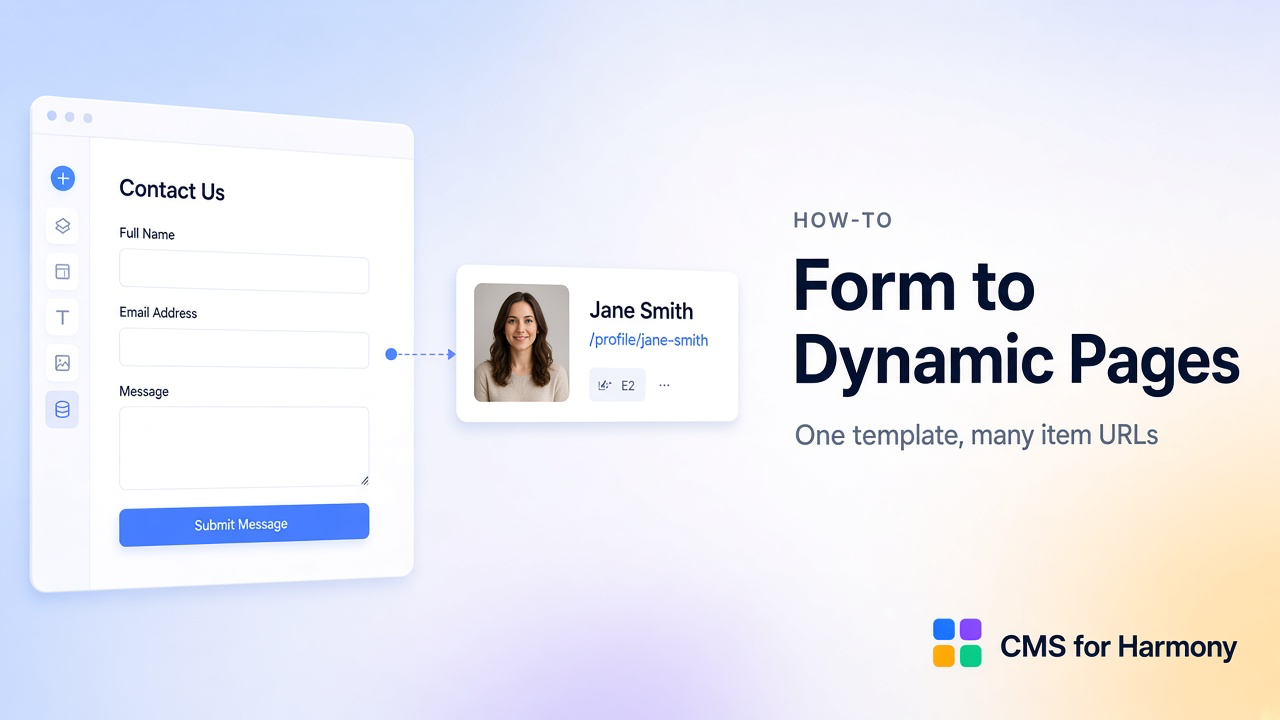
Builders often want this arc: a visitor submits a form, a CMS item is created, and that item appears at its own URL. CMS for Harmony does that with one shared Dynamic Page template plus many item URLs—not a separate editor page for every submission.
Form basics: Save form submissions to a CMS. Dynamic Page setup: Create Dynamic Pages. This guide wires them into one submission → page journey.
Important mental model
| What happens | What does not happen |
|---|---|
| Form creates (or updates) a collection item | A brand-new Harmony page is generated per submit |
| One native collection page + Dynamic Page widget serves every item | You design dozens of pages by hand |
| Each item gets a slug-based URL under the page path | The Form itself “builds” page layouts |
When someone opens /memorials/jane-doe, the same template loads with Jane’s fields. When they open /memorials/john-smith, the same page and widget run again with John’s content.
Concrete example — memorial profile
Visitors submit a tribute with a photo; after review, each approved profile is public at its own URL.
Sample Profiles collection schema
| Field | Type | Notes |
|---|---|---|
| Full name | Text | Title + slug source |
| Tribute | Text (long) | Body copy |
| Photo | Image | Form upload → collection |
| Submitted by | Text | Optional |
| Text | Private; omit from public Dynamic Page | |
| Visibility | Text | Pending / Published |
| Item slug | System | Used for the URL |
Step 1 — Collection + native collection page
- Create Profiles (or Applications, Listings—same pattern).
- Add the fields the Form will write and the public page will show.
- Choose More actions → Add collection page. Note the path (e.g.
memorialsfor/memorials/jane-doe). - Confirm items use Item slug (from the name field when Wix generates slugs).
Step 2 — Form creates the collection item
- Add Form on a Submit / Contribute page.
- Connect Profiles; include Full name, Tribute, Photo, Submitted by, Email.
- Do not expose Visibility to visitors—default new items to Pending (fixed default in the collection, or a Pro Hidden field with fixed text
Pending). - Set After Submit success message or thank-you page.
- Publish and submit a test profile; confirm a new CMS row appears.
Docs: Form · Hidden fields (Pro).
Step 3 — Shared template displays each item
- On the native collection page, add Dynamic Page.
- Connect Profiles; map Full name, Photo, Tribute (skip Email on the public layout).
- Set Page path to the native path (
memorials) and Page link field to Item slug. - Map per-item SEO from Full name / Tribute when you want distinct share previews.
- Publish; open
/memorials/{slug}for the test item.
Details: The page is a template.
Step 4 — Listing + links from a directory
- Add Repeater or Table on a Memorials index page; connect Profiles.
- Add a fixed Choose value filter: Visibility = Published (public list hides Pending).
- Turn on Link to item page with the same Page path.
- Editors change Visibility to Published when a submission is ready—no layout work per item.
Pattern overlap: Searchable directory.
Step 5 — Review before public visibility
Recommended workflow:
- Submissions arrive as Pending.
- Review Photo and Tribute in the CMS (and Email privately).
- Fix slug/name if needed.
- Set Visibility to Published so the index and SEO surfaces can include it.
- Optionally notify the submitter via Automations when status changes (separate from Form submitted).
Optional automation extension (test separately)
After item URLs exist, you can extend the workflow outside the page builder—for example send each published item’s URL to Zapier or Make for QR codes or print programs.
- Confirm the item URL pattern on the live site (
https://yoursite.com/memorials/jane-doe). - Use Wix Automations and/or an external tool on CMS create/update—test QR or notification flows on staging data first.
- Keep automation failures from blocking the Form → CMS → Dynamic Page path; the site must work even if the QR step is down.
Optional AI setup shortcut
AI setup can help scaffold Form fields or Dynamic Page field maps. Still verify manually: Pending default, Published filter on the index, Page path / Item slug match, and that Email is not shown on the public template.
Live-site verification checklist
- Submit the Form → new CMS item with expected fields and Pending visibility.
- Open the item URL on the shared template—correct photo and tribute; no private Email.
- Pending item does not appear on the public Repeater index.
- Set Visibility to Published → item appears on the index and opens the same URL.
- Submit a second profile → second URL, same template layout, different content.
- If using an automation/QR path, run one controlled test with a known URL.
Related reading
- Form submissions · Dynamic Pages setup
- Native vs app Dynamic Pages
- Multi-step wedding RSVP · Dynamic Page
FAQ
Does each submission create a new page in the editor?
No. You get a new collection item and a new URL served by one Dynamic Page template.
Can the Form navigate straight to the new item URL after submit?
After Submit → Navigate to Page can use a Dynamic page URL when the submitted item is the one being opened—configure and test carefully with your slug field. Many sites use a thank-you page instead and publish the item URL after review.
What if native Add collection page isn’t available?
Use the app /item Site Page alternative described in Dynamic pages—same one-template model, fixed path prefix.