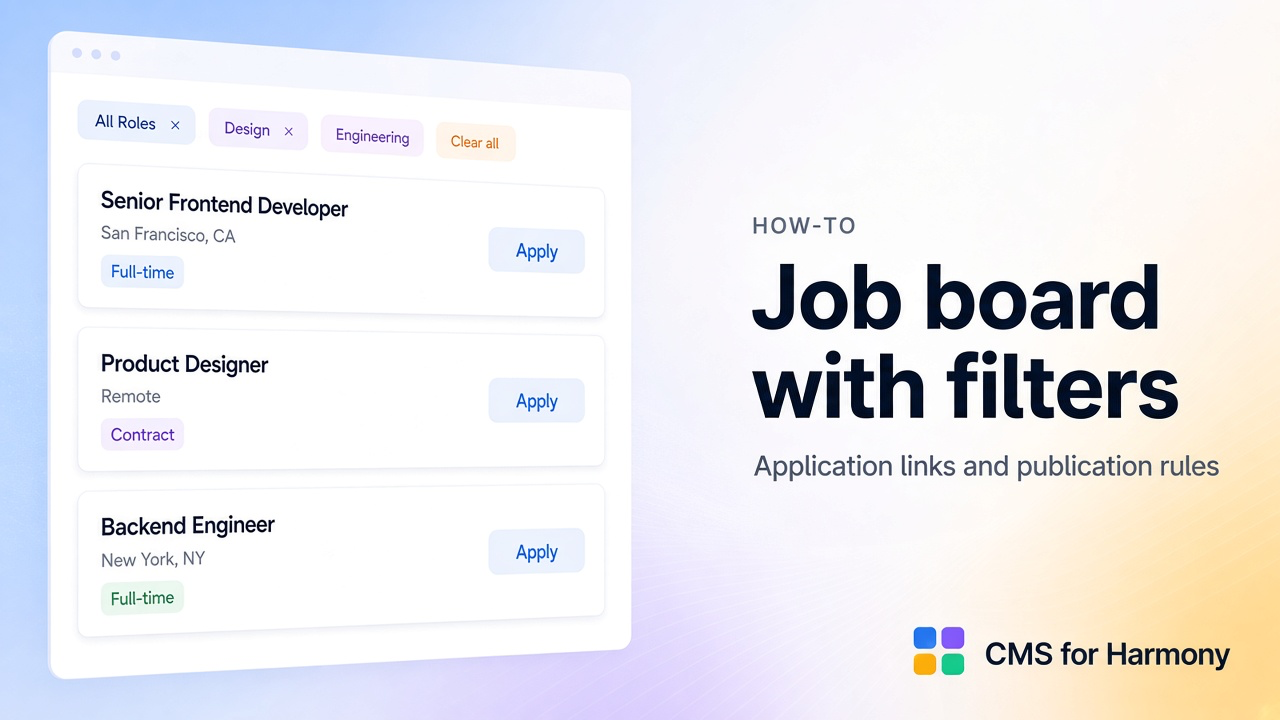
A job board is a searchable list of open roles—title, employer, location, type, salary—that visitors can filter, preview, and apply to. This walkthrough builds a complete recruitment listing on Wix Harmony with CMS for Harmony: fixed publication rules so closed or unapproved jobs stay off the public list, visitor filters for what is open, job cards with Apply links, and optional detail pages.
For the general directory pattern (collection → Repeater/Table → search & filters → optional profiles), start with How to Build a Searchable Directory. This guide adds recruitment-specific fields, application flows, and approval checks.
On Harmony without a site yet: free starter site.
What you’ll put on the page
| Piece | Typical choice |
|---|---|
| Roles | Jobs CMS collection |
| Card grid | Repeater |
| Public vs draft | Fixed Choose value filters (publication / approval) |
| Visitor browse | Search + filters (location, type, employer) |
| Preview | Quick view (optional) |
| Full role page | Native collection page + Dynamic Page (optional) |
| Apply | URL button to an external ATS or careers form |
Sample Jobs collection schema
Create a Jobs collection with fields like:
| Field | Type | Notes |
|---|---|---|
| Title | Text | Role name; good slug source |
| Employer | Text | Company or department |
| Location | Text | City, region, or Remote |
| Employment type | Text / tags | Full-time, Part-time, Contract |
| Salary | Text or Number | Range string, or number + Formatting |
| Description | Text (long) | Full posting body |
| Application URL | URL | External apply link |
| Publication status | Text | e.g. Published / Draft |
| Approval status | Text | e.g. Approved / Pending (if you review before go-live) |
| Status | Text | e.g. Open / Closed (optional if Publication covers it) |
| Cover image | Image | Optional card image |
Add enough sample rows that some are Published + Approved + Open, and some are Draft, Pending, or Closed—so you can prove the public list hides the right ones.
Step 1 — Model Jobs and seed data
- Open the CMS for Harmony dashboard and create Jobs.
- Add the fields above (match names to how your team talks about roles).
- Create 8–12 items. For each, set publication and approval deliberately.
- Optionally choose More actions → Add collection page now if you want individual job URLs later.
Step 2 — Job cards with Repeater
- Add Repeater to your careers page.
- Connect Jobs.
- Under Content, select Title, Employer, Location, Employment type, Salary, and a short Description (or leave long text for Quick view / the item page).
- Set Layout to Grid or List. For denser “row” cards, see Customize Repeater cards.
- Map an Application URL field as a button (label Apply) that opens the external link—new tab is usually best for ATS sites.
Docs: Repeater.
Step 3 — Fixed publication rules vs visitor filters
Open Search & filters on the Repeater. Treat these as two layers:
Fixed rules (no visitor UI)
Use Choose value so the public list never shows draft, unapproved, or closed roles. Examples:
- Publication status → Choose value → Equals Published
- Approval status → Choose value → Equals Approved
- Optionally Status → Equals Open
Use AND logic across these rules (every fixed filter must match). Do not rely on OR if a role must satisfy all three.
Visitor controls (Show filter)
Turn on Show filter for fields candidates actually browse:
- Location
- Employment type
- Employer (or department)
Optionally enable search over Title / Description / Employer. Set Filters display to Top or Side.
Overview: Search & filters · Combine search and filters.
Step 4 — Quick view vs individual job pages
| Approach | Use when |
|---|---|
| Quick view | Short descriptions; Apply stays on the listing page |
| Dynamic Page | Long postings, shareable URLs, SEO per role |
Quick view: enable on the Repeater; pick fields for the overlay (full Description, Salary, Apply button). Reference: Quick view.
Item pages:
- Ensure the collection has Add collection page.
- Place Dynamic Page on that page; connect Jobs; map Description and Apply.
- Set Page path and Item slug; link cards from the Repeater.
Walkthrough: Dynamic Pages.
Many boards use both: Quick view for skim, item page for sharing.
Step 5 — Optional AI setup shortcut
In the Repeater (or Form) panel, AI setup can propose collection fields and filter wiring from a plain-language prompt. Treat it as a shortcut: review every Choose value rule and Apply button mapping yourself, then run the live checklist below. Prefer the manual steps when publication logic must be exact.
Live-site verification checklist
Publish, then on the live site:
- Open the careers page—only Published + Approved (+ Open) jobs appear.
- Confirm a Draft, Pending, or Closed item is absent from the list (and from search results).
- Filter by Location and Employment type; combine with search.
- Click Apply—the Application URL opens correctly.
- If using Quick view / Dynamic Page, open two roles and confirm different content.
- Change one live job to Closed (or Draft) in the CMS; refresh and confirm it disappears from the public list.
Related reading
- Searchable directory · Customize Repeater cards
- Repeater · Search & filters · Dynamic Page
- Wix CMS Guide
FAQ
How do I keep unapproved jobs off the public board?
Add a Choose value filter on Approval status (and Publication status) so only Approved + Published items match. Visitor filters should not be able to override those fixed rules.
Should Apply open a CMS form or an external URL?
Either works. Use a URL field when applications live in an ATS or careers portal. Use the Form widget when you want applications saved into a CMS collection on your site.
Can I use Table instead of Repeater?
Yes—Table fits dense inventories. The same fixed Choose value publication rules and visitor filters apply. See Show CMS items in a table.